


Overview
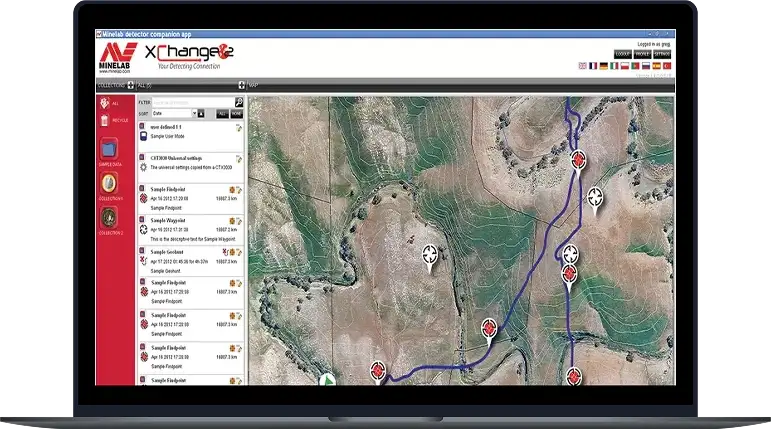
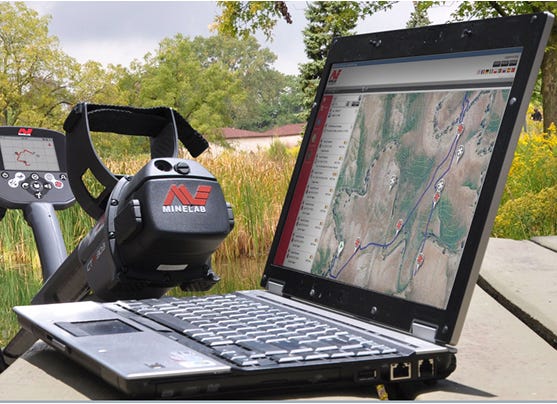
By connecting the CTX 3030 or GPZ 7000 to XChange 2 you can transfer WayPoints, FindPoints and GeoHunts to and from your PC (an internet connection is required to view Google Maps). All of your personal detecting data is stored locally and securely on your PC and is not accessible by Minelab or anybody else.
- Add text comments and photos to your finds and/or hunts. Important detecting information can now all be stored in one place with one PC application.
- Categorise and color code target types on your maps and arrange in Collection folders. You can create an unlimited database of your detecting information for future reference.
- Create new WayPoints for navigating to detecting locations of interest.
- Edit, rename and download finds, detector settings and location data to your CTX 3030 or GPZ 7000 to assist with your next hunt.
View FAQs for XChange 2here.
XChange 2 Application (PC Only)
Version 1.8.7-1.4.2 Released October 2023.
Installation Guide:
- Download “XChange2–1.8.7-1.4.2.exe”
- Restart your computer
- Locate the downloaded “XChange2–1.8.7-1.4.2.exe” file, then double click on the file to start the installation process.
- Installation will take approximately 5 minutes and will uninstall the current version of XChange 2 that is installed on your computer.
- Once installation is completed, restart your computer.
- Open and run XChange 2 as normal.
FAQ
The CTX 3030, GPZ 7000 and XChange 2 all use SQLite for their data storage. Using a tool such as SQLiteSpy can help extract the files. There is no need to install SQLiteSpy as the extracted file runs directly.
1. Plug the detector into a PC and navigate to the new removable drive that is created.
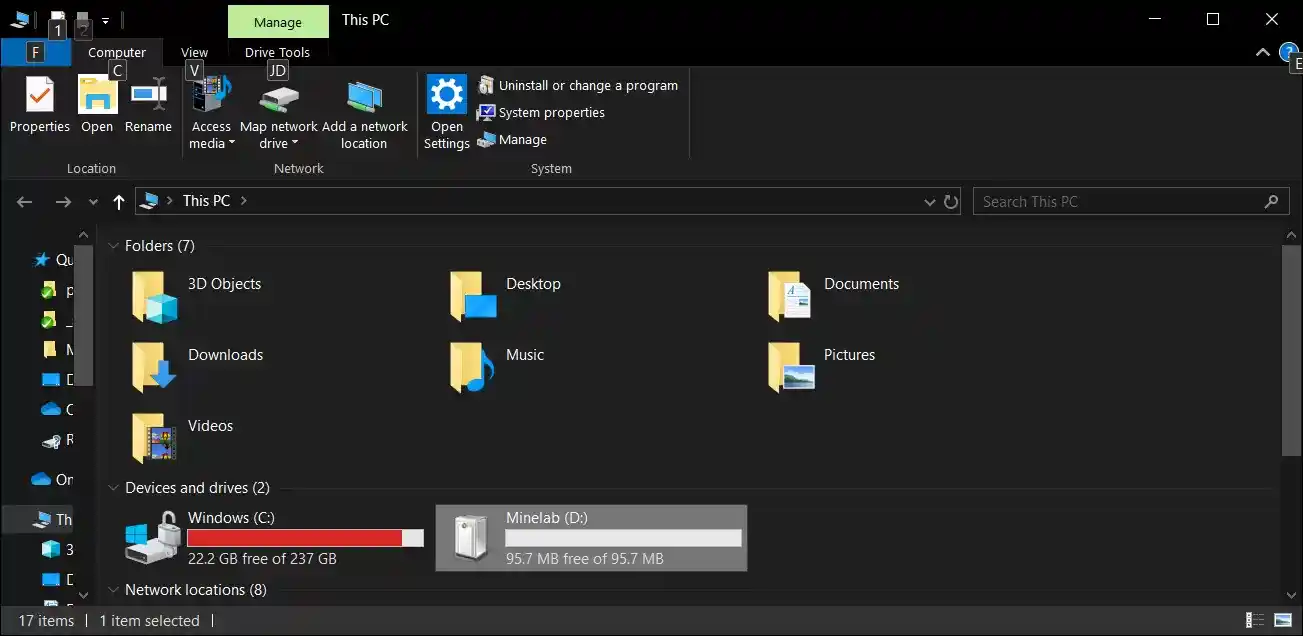
2. Open the drive.
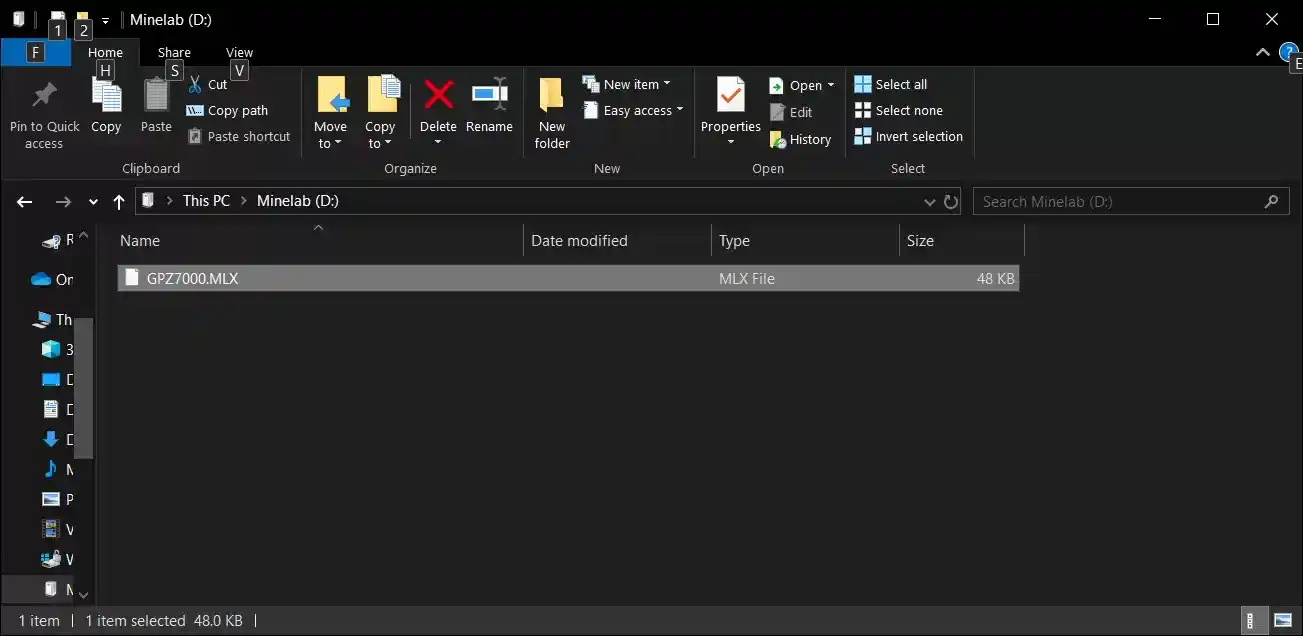
3. Inside you will find a file. Copy this to a location to use it. This file is the storage database that needs to be opened.
1. In XChange 2 select the points that you want to extract.
2. Drag them onto the “File” folder.
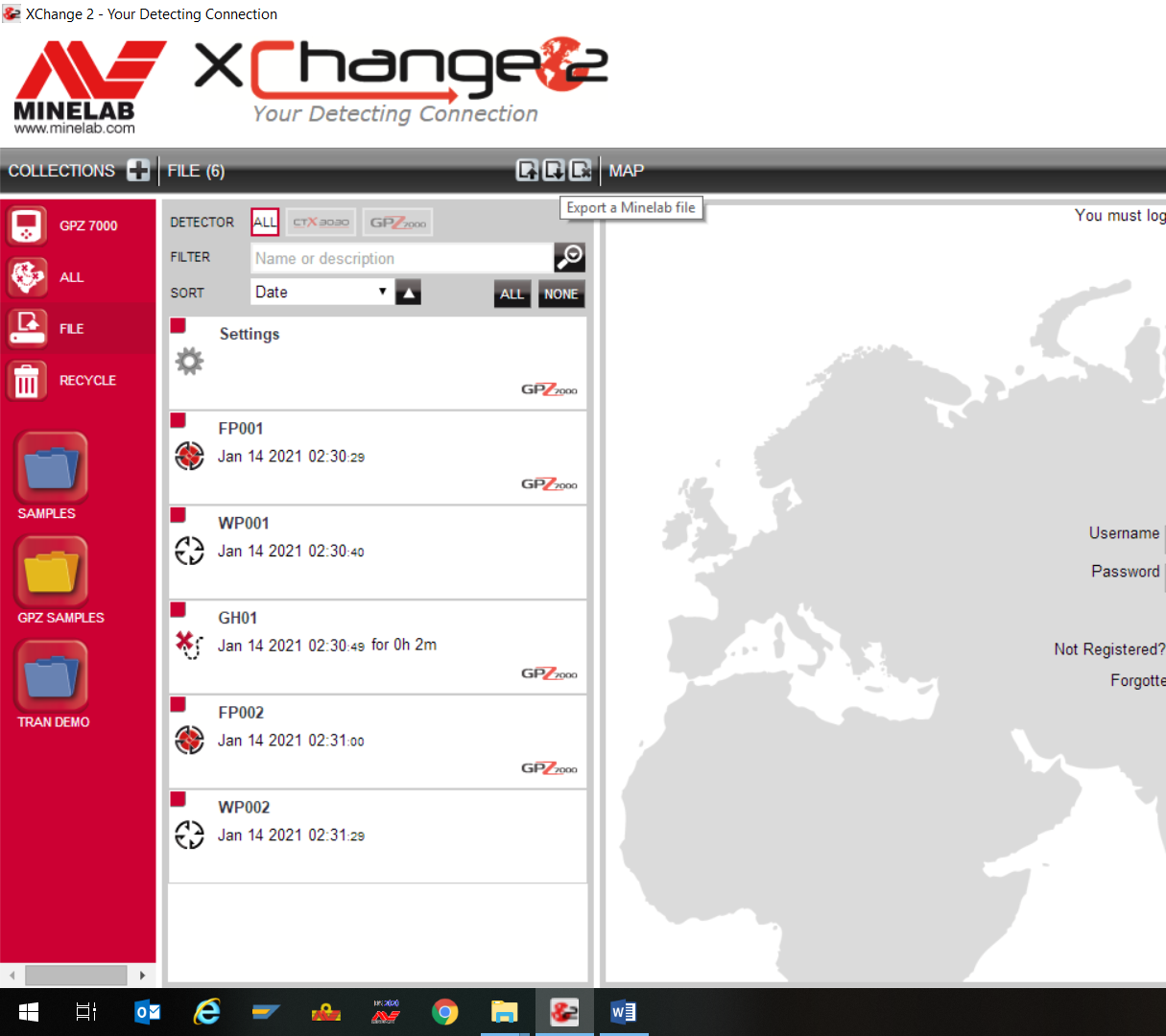
3. Open the "file" folder by clicking it.
4. Click on "export a Minelab file" button.
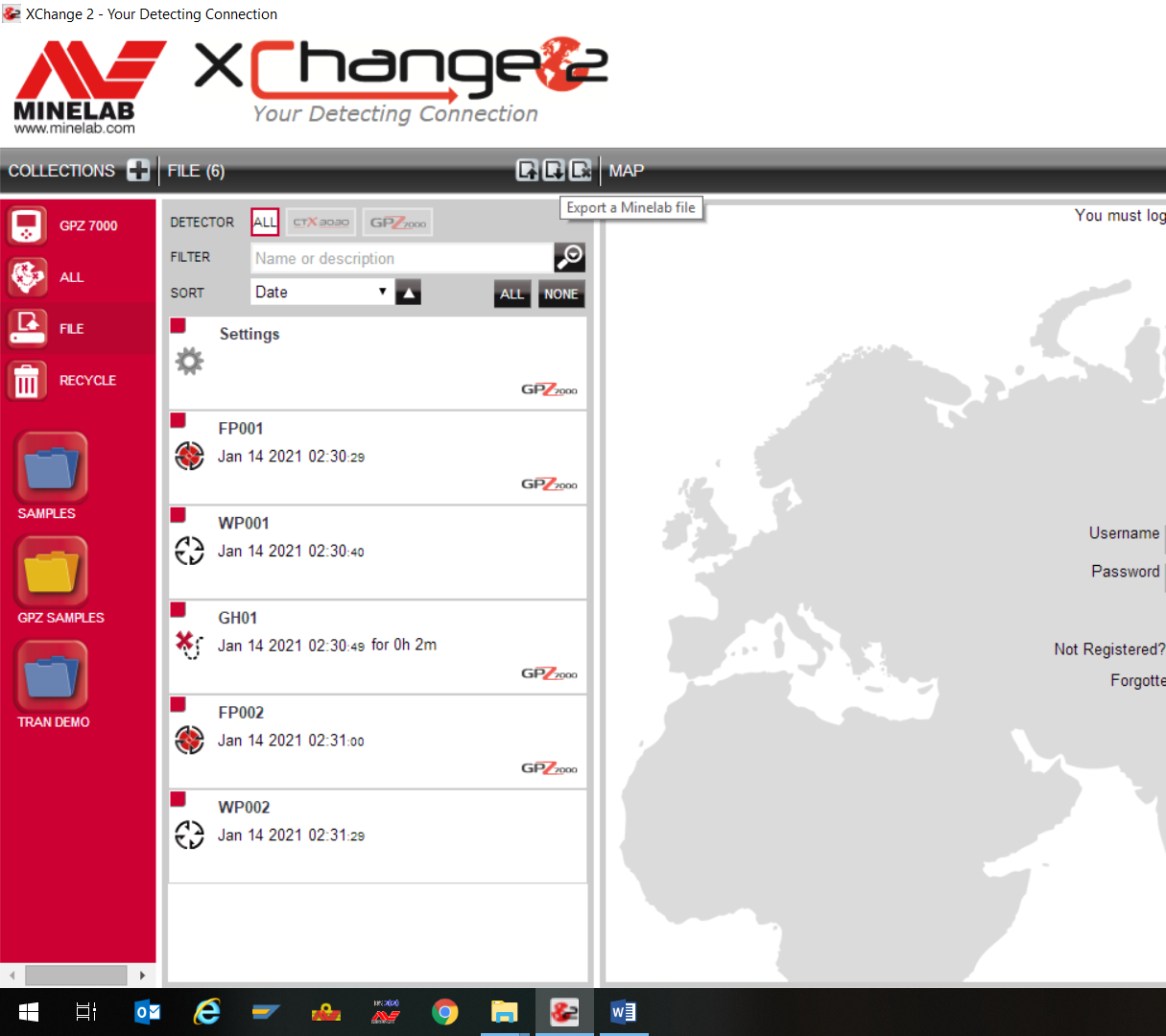
5. The file should be in your "Downloads" folder.
6. This downloaded file is zipped, so you will need to use a tool such as 7zip to extract the "shareData" file inside.
7. Copy "shareData" to a location to use it. This file is in the storage database that needs to be opened.
SQLiteSpy is used in this example but a similar process will apply to other tools.
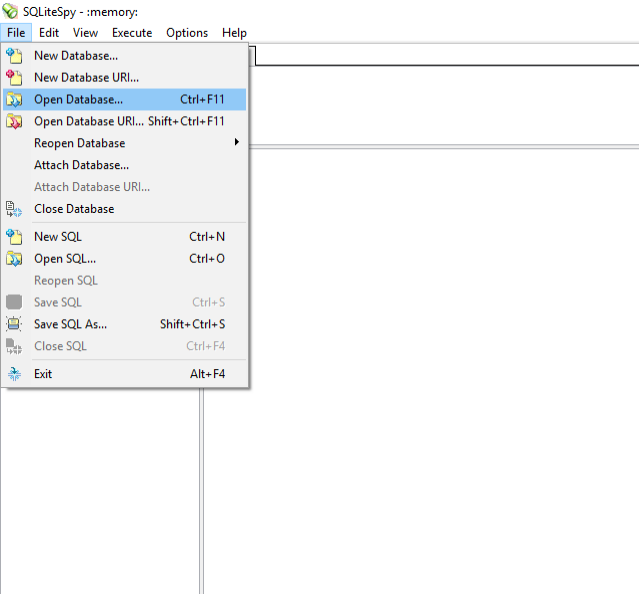
1. Open SQLiteSpy.
2. Select "File" > "Open Database ..."
3. Navigate to the location of the database.
4. Change the file type to "Any file (*.*)".
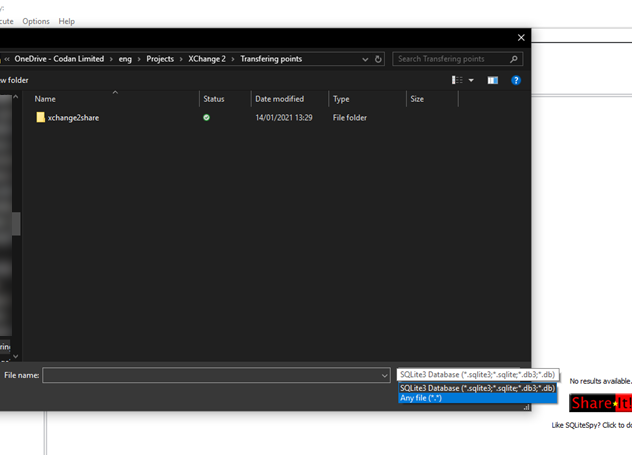
5. Select the database and select "Open".
6. On the left, there are several tables depending on the database file used:
- findpoint: contains each of the FindPoints saved.
- waypoint: contains each of the WayPoints saved.
- point: contains each of the points used to create a track in all of the GeoHunts. Note that each GeoHunt is identified by a UUID in the "geohunt_fk" column.
- geohunt: contains the UUID that is used in the "point" table to identify each of the GeoHunts.
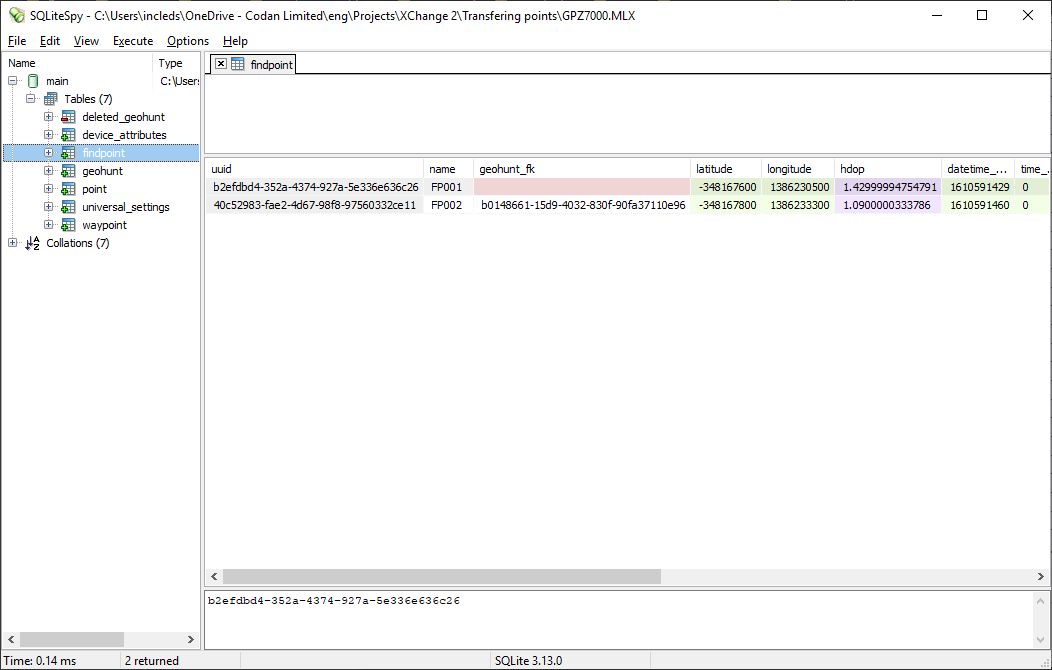
7. Double click on the “findpoint” table. This will display all of the FindPoints extracted.
8. Click on a row in the table then press "Ctrl + A" to select all rows.
9. Press "Ctrl + C" to copy all data.
10. Open Excel.
11. Paste the data into the spreadsheet.
12. In some database files, the latitude and longitude need to be divided by 10,000,000 to get them into the correct format.
13. Use the points from here as needed.
Validate your login